1090 Bicycle Society User Guide
1090 Bicycle Society is a free community for people who ride bicycles, whether you ride around the neighborhood, commute, explore trails, ride with your family, or ride hundreds of miles. Every ride counts.
Members share 1090 Posts (rides, places, photos, stories and events), find them on a map, comment and rate, keep a public profile, connect with other members, and chat privately.
1. Browse the Home Page and Posts
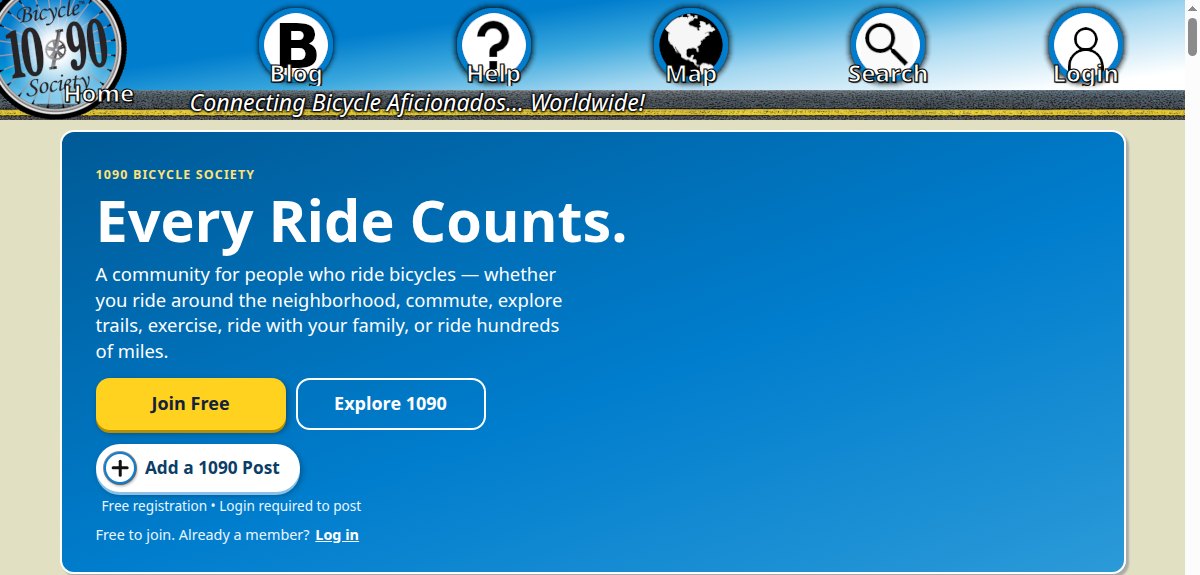
You can browse without an account. The Home page opens with a banner, “Every Ride Counts.”, followed by a strip of recent posts (“See what’s happening on 1090”), and then the full community feed of 1090 Posts, newest first.
- Join Free opens free registration.
- Explore 1090 scrolls down to recent posts. Browse all posts ↓ jumps to the full feed.
- + Add a 1090 Post also opens registration for visitors. The note under it reads Free registration • Login required to post.
- Log in is for existing members.
The icons across the top are Home (the 1090 logo), Blog, Help, Map, Search and Login. Map and Search appear on the Home page. After you log in, Login is replaced by Menu.
What you see on each post
- Top row: the category icon and name, the title, the date, and the author’s username. If the author’s profile has a photo, a small round picture appears at the right.
- Category icon: select it to see that post on the map. If the post has no location you will see “Location is not available for this post.”
- Small icons at the top right: a website-link icon (if the author added a website), a blue envelope for messaging the author (members only, see Connect), and a pencil edit icon on your own posts.
- Media: photos play as an automatic slideshow. You can also scroll sideways through the photos, a YouTube video and a map image. Select the video to play it, and select a map labelled Tap or click for live map to zoom and pan it.
- Message: the text of the post.
- Comments and rating at the bottom (see section 9).
Every post has a title and a message. Photos, video, a website link and a map location are optional, so some posts have none of them. Posts without a location still appear in the feed, but not on the map.
2. Explore the Map
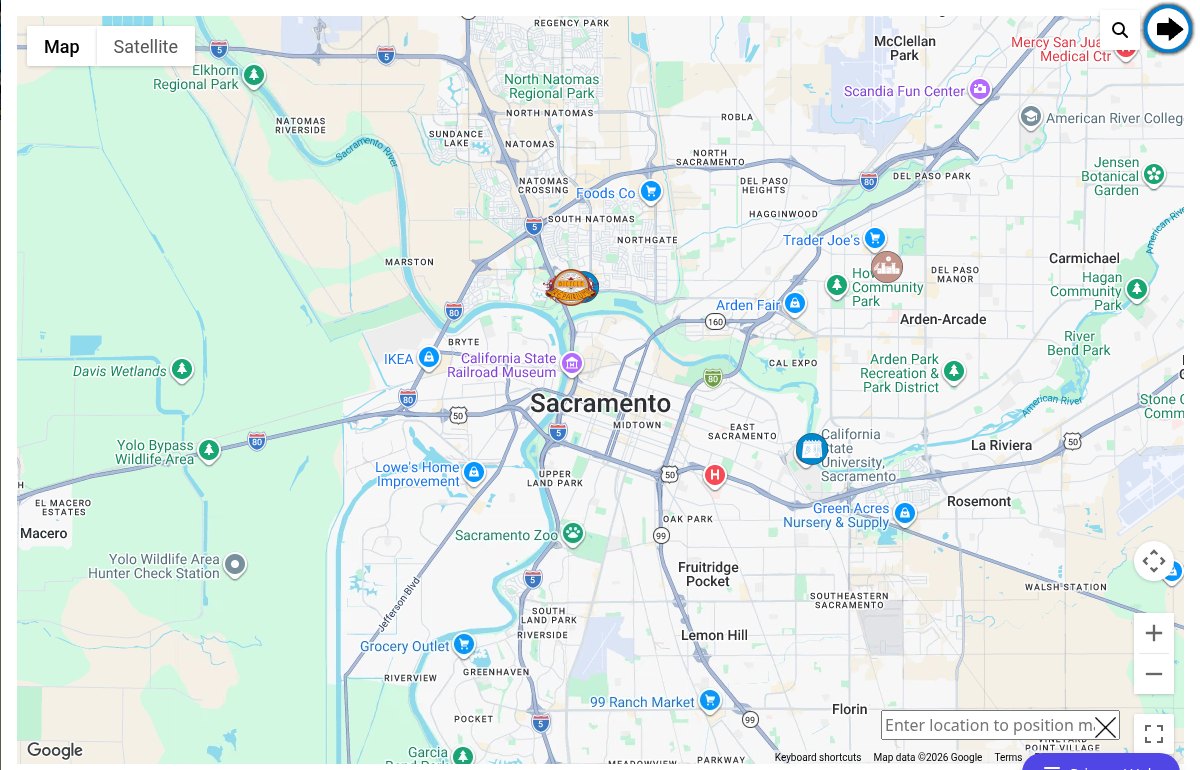
- On the Home page, select the Map (globe) icon. The map opens over the page.
- Each marker is a 1090 Post with a location. The icon shows the post’s category.
- Select a marker to see a short preview, then select click to view post to jump to the full post in the feed.
- Use the + and − buttons, your mouse wheel, or pinch and drag to zoom and pan. Map / Satellite switches the view, and the square button at the bottom right goes full screen.
- To jump somewhere else, type a place in Enter location to position map at the bottom of the map and press Enter. The × clears the box.
- Select the arrow button at the top right of the map to close it.
3. Search and Filter Posts
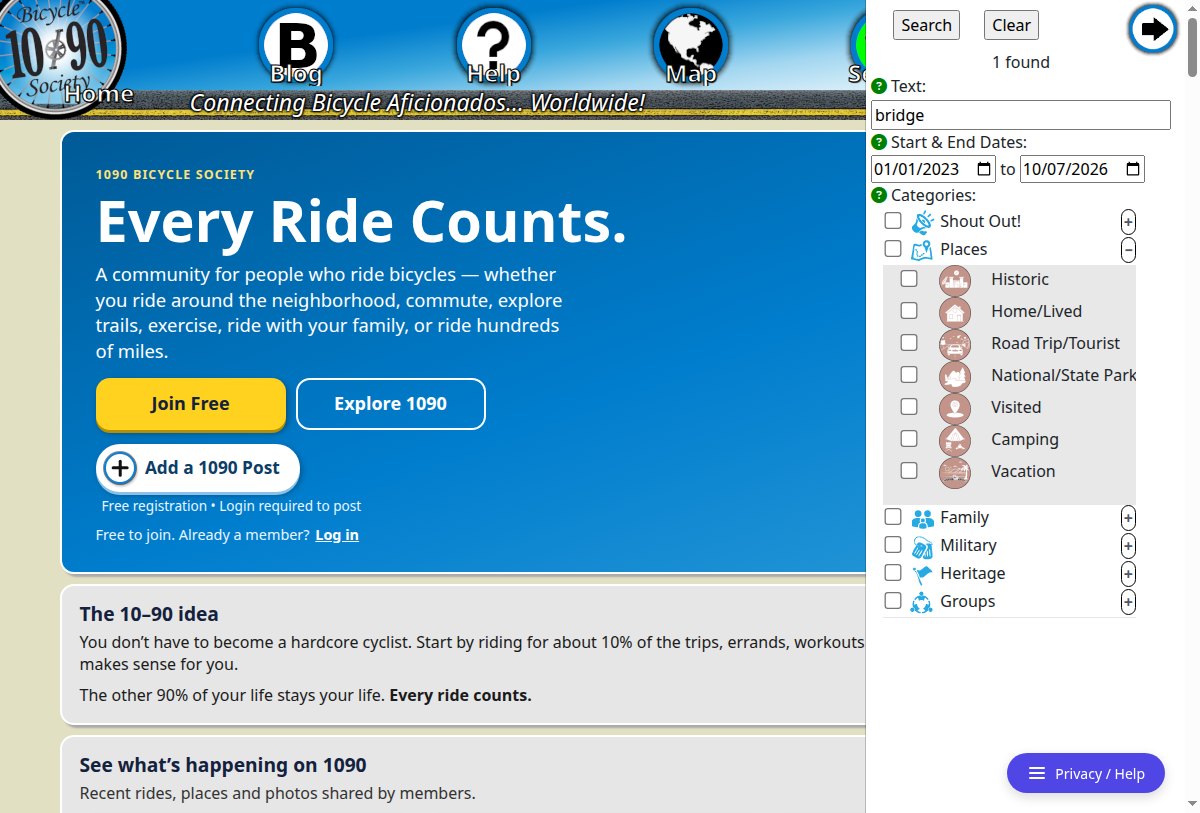
- Select the Search (magnifying glass) icon at the top of the Home page, or the small magnifying glass on the open map.
- Enter any combination of:
- Text: one or more words. A post matches if it contains any of them.
- Start & End Dates.
- Categories: tick a category, or select + beside it to show and tick its subcategories (for example Places → Historic, Camping, Vacation).
- Select Search. The panel shows how many matching posts were found, for example 1 found.
- Select Clear to remove all filters. Use the arrow button at the top of the panel to close it.
4. Join, Verify Your Email, and Log In
Register (free)
- Select Join Free or + Add a 1090 Post. If you already have an account, use the Log in link at the top of the Sign Up page instead.
- Fill in Name, Username, Password, Confirm Password and Email Address. Passwords need at least 8 characters, including 1 number, 1 symbol, 1 upper-case and 1 lower-case letter. Show Password lets you check what you typed.
- Read the Terms & Conditions, choose I agree, complete the Captcha, and select Register.
- You will see: “Your account has been created and an activation link has been sent to the email address you entered…” You cannot log in until you activate.
Verify your email
- Open the email from 1090 Bicycle Society and select the activation link. If it has not arrived, check your spam or junk folder.
- Same browser you registered in: you should arrive on the Home page already logged in, with a welcome message.
- Different browser or device (for example your phone’s mail app): your account is activated and you are asked to log in. After logging in you are taken to the Home page.
Log in, recover, and log out
- Login asks for your username and password. Tick Remember me on your own device if you want to stay logged in.
- Forgot your password? sends a verification code to your email so you can set a new password. Forgot your username? emails your username to you. Both ask for your email address and a captcha.
- Log out with the Logout icon on your Profile page (see the next section). Logging out ends your session on every device and browser where you are logged in.
5. Find Your Way Around as a Member
When you are logged in, the top icons change from page to page, and a + Add a 1090 Post button sits just below them. On the Home page, select Menu (☰) to show the member icons:
| Icon | What it does |
|---|---|
| Add Post | Opens a new 1090 Post form. |
| Profile | Opens your member profile, which is also where Logout is. |
| Friends | Your accepted connections and blocked members. |
| Messages | Your private conversations (live chat). |
| Go Back | Returns to the main icons. |
Other pages show the icons you need there. The post form has Save (and Delete when editing), Messages has Msg Help and Friends, and Friends has Messages.
A floating badge such as ✉ 1 unread · 1 pending appears when you have unread messages or connection requests. Select it to open Messages.
6. Set Up Your Profile and Account
Your profile introduces you to the community. It uses the same form as a post, with the category fixed to Member.
- Select Menu → Profile.
- In Easy mode, write a Message about yourself (up to 500 characters) and optionally add photos. Switch to Advanced to set a Title, such as your name, a nickname or a favorite ride, and to add a video, website or map pin.
- Select Save. You are returned to the Home page.
Account settings: name, email and password
To change your display name, email address or password, open your account details while logged in, select Edit Profile, make your changes, and select Save. Usernames can only be changed by a site administrator.
7. Create a 1090 Post
When you are logged in, select + Add a 1090 Post (or Menu → Add Post). Visitors who select it are taken to registration instead. If your email is not verified yet, you will see Please verify your email address before posting.
Easy or Advanced?
At the top of the form, Post Edit Mode offers Easy and Advanced.
| Mode | You fill in | Best for |
|---|---|---|
| Easy (default) | Message and photos only. The title is set to “1090 Post” and the category to Shout Out! | Your first post, quick updates, or posting from a phone. |
| Advanced | Category, title, message, photos, primary image, YouTube link, website link, and a map location. | Places, events and rides you want to appear on the map, or posts that need a specific title, category or link. |
You can switch modes at any time without losing what you typed. Easy mode only hides the extra fields; anything already entered in them is kept and saved with the post.
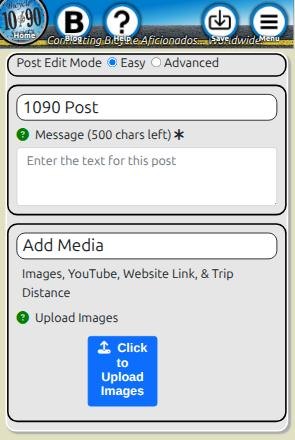
Easy mode, step by step
- Type your Message. The counter shows how many of the 500 characters are left.
- Optionally select Click to Upload Images and choose one or more photos. Each chosen file is listed by name. Photos are uploaded when you save.
- Select Save at the top. Your post appears at the top of the Home feed.
Advanced mode fields
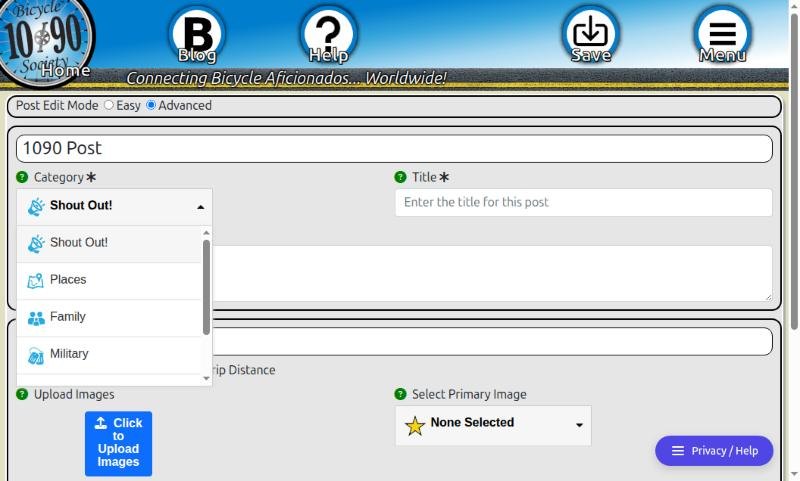
- Category (required): Shout Out!, Places, Family, Military, Heritage or Groups.
- Title (required) and Message (required, up to 500 characters).
- Upload Images: add photos. Each saved photo shows three small buttons: a star to make it the first photo shown, a rotate button (90° clockwise), and an × to remove it.
- Select Primary Image: choose what appears first on the post: your uploaded images, the YouTube video, the Google Map, or none.
- YouTube Video Link: paste a link in the form
https://youtu.be/… - Website Link: a full address starting with
https://. It appears as a link icon on the post. - Google Map Location: Hide Google Map (default) or Show Google Map. See below.
The green ? next to a field shows a short tip when you point at it or tap it.
Add a map location
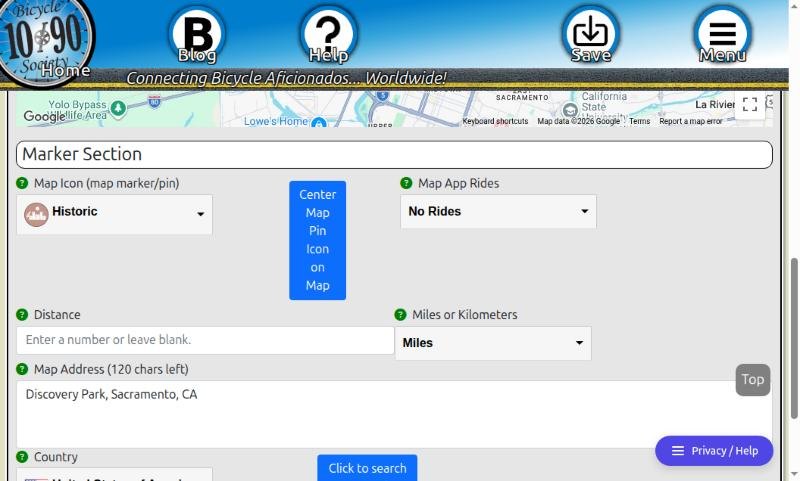
- Set Choose Show/Hide Map to Show Google Map. A map and a Marker Section appear.
- Choose a Map Icon. This is the subcategory, for example Places → Historic, Camping or National/State Parks, and it is the icon shown on the community map.
- The pin starts at your device’s location if you allowed location access. Drag the pin to the exact spot.
- Optionally type a Map Address to move the map to an area. This is not shown on the post, and it moves the map, not the pin, so drag the pin there afterwards.
- Check Country, then select Save.
The Marker Section also has optional Map App Rides, Distance and Miles or Kilometers fields. You can leave them blank.
If something is missing
If Title or Message is empty when you select Save, a red box at the top lists what is needed, for example Enter the Title of your post. *Required. Fill it in and save again.
There is no Cancel button. To leave without saving, go to another page, for example Home. Anything you did not save is lost.
8. Edit or Delete Your Posts
- Find your post on the Home page or on your profile, then select the pencil edit icon at its top right.
- The form opens with your content. If you need the Advanced fields (category, title, links, map), select Advanced.
- Make your changes and select Save.
- To remove the post, select Delete in the top icons and confirm the Confirm Delete! prompt. Deleting cannot be undone.
9. Comment on and Rate Posts
Comments
- Log in, then select Add Comment under a post. Visitors see “Login to add comments!” and a Login button instead.
- Type in Enter your comment here. and select Save Comment.
- You will see “Thank you for your message!”. Your comment, with your username and the date, shows under the post the next time the page loads.
Ratings
Posts are rated from 1 to 5, shown with bicycle icons in the blue bar, for example 4 of 5 / 3 votes.
- Log in and select a bicycle icon in the rating bar.
- Check the text that appears, Vote for N stars. The bar fills from the right, so adjust your choice if needed.
- Select Vote. You will see “Thank you for your rating!”
10. Discover Other Members
- Profiles: select a member’s round profile picture on any of their posts to open their profile page. It shows their profile and a Posts by… list of everything they have shared.
- Posts and the map: the feed, the map and search are the main ways to find riders and places near you or that interest you.
- The envelope: when you are logged in, a blue envelope at the top right of another member’s post lets you contact them.
11. Connect: Your One First Message
Private messaging works through connections. You may send one first message to a member you are not connected with. That message is your connection request, and the other member decides whether to accept it.
Send your first message
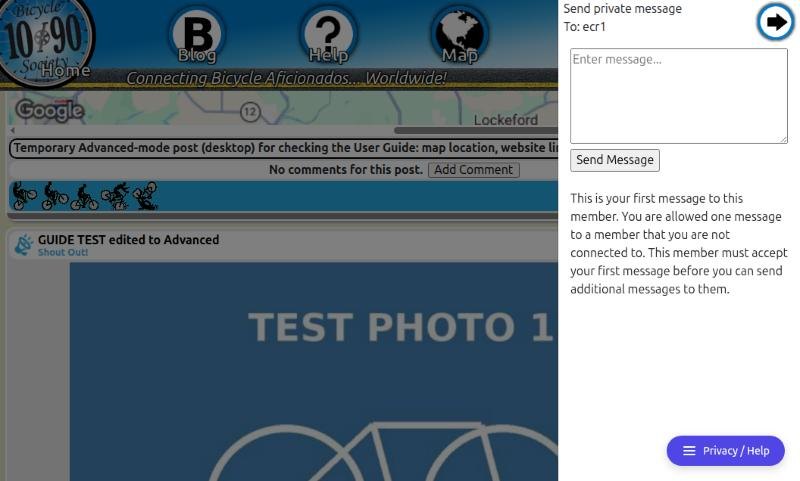
- Log in, find one of the member’s posts, and select the blue envelope.
- A Send private message panel opens. It explains: “This is your first message to this member. You are allowed one message to a member that you are not connected to. This member must accept your first message before you can send additional messages to them.”
- Write a friendly introduction and select Send Message. You will see “Your message has been sent!”
While you wait
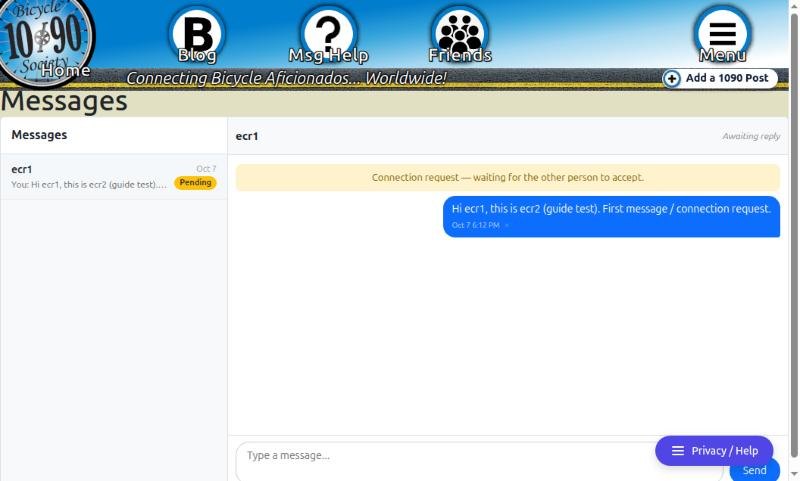
- The envelope on that member’s posts turns pale and shows Connection Pending. It cannot be used until they respond.
- In Messages, the conversation shows a yellow Pending badge, the header says Awaiting reply, and a note reads “Connection request — waiting for the other person to accept.”
- Extra messages are not delivered while the request is pending. If you type another one, it briefly appears and then disappears. Please wait for a reply.
When someone sends you a request
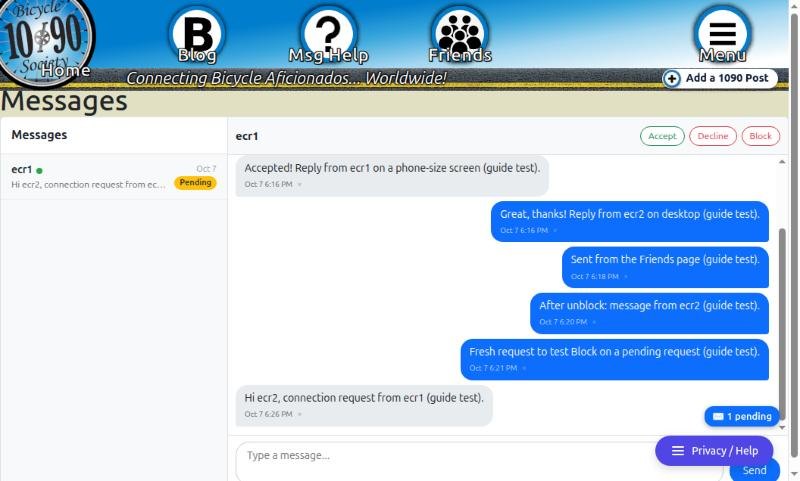
- Look for the ✉ … pending badge, or open Menu → Messages. Requests show a yellow Pending badge.
- Open the conversation and read the message. The header shows Accept, Decline and Block.
- Choose one and confirm:
- Accept: you become connected. Each of you is added to the other’s Friends list, and you can both message freely.
- Decline: removes the request. The sender is not notified, and they are able to send a new request later.
- Block: intended to stop the member from contacting you. See the note below.
12. Chat on the Messages Page
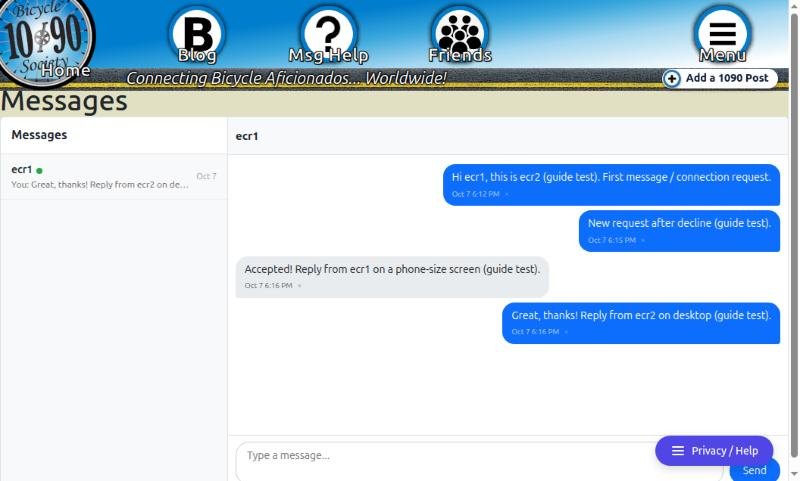
Messages works like a text-message app.
- Conversation list (left): one row per member, showing the latest message (yours start with “You:”), its date, and a badge: the number of unread messages, Pending, or Blocked. A green dot next to a name means that member has been active on the site in the last couple of minutes.
- Chat (right): your messages are blue on the right; theirs are grey on the left. Each shows the date and time.
- To send: type in Type a message… and press Enter or select Send. Press Shift + Enter for a new line.
- Live updates: while a conversation is open, new messages from the other person appear on their own within a few seconds; you do not need to refresh. Opening a conversation marks its messages as read.
- Delete a message: select the small × next to its time and confirm. It is removed for both people and cannot be recovered.
- Messages are text only. There is no option to attach photos or files.
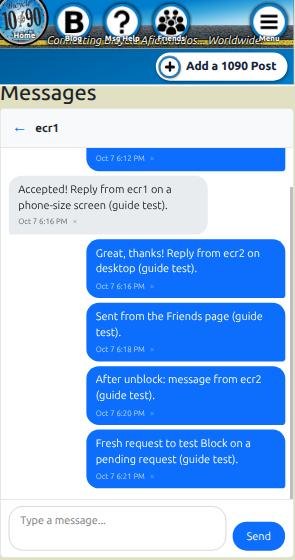
On a phone, the list and the chat take turns filling the screen. Tap a name to open the chat, and tap ← beside the name to return to the list.
13. Manage Friends and Blocking
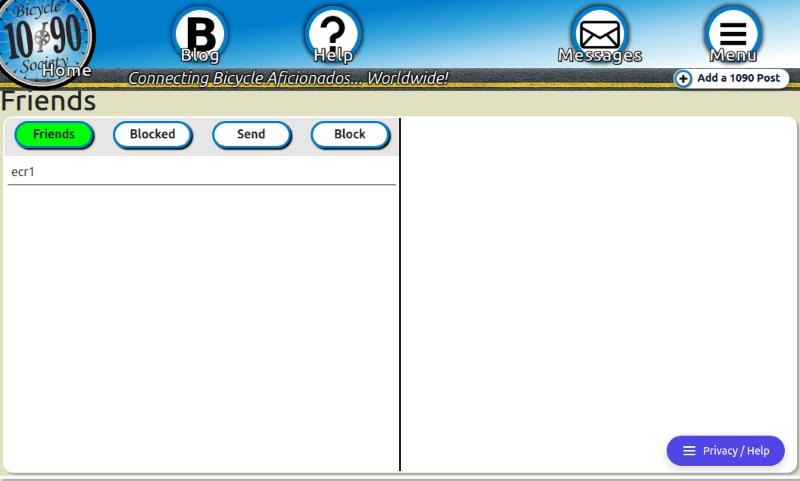
Friends page or Messages page?
| Friends | Messages |
|---|---|
| A list of people: members you are connected with, and members you have blocked. | A list of conversations, including pending requests and blocked conversations. |
| Use it to send a quick message to a friend, block a friend, or unblock someone. | Use it to read and reply, accept or decline requests, delete messages, and unblock. |
Use the Friends page
- Open Menu → Friends. The green button shows which list you are viewing: Friends or Blocked.
- Select a name. It is highlighted in yellow.
- On the Friends list, Send opens a message panel addressed to that friend, and Block blocks them after you confirm.
- On the Blocked list, Unblock removes the block after you confirm.
What blocking does
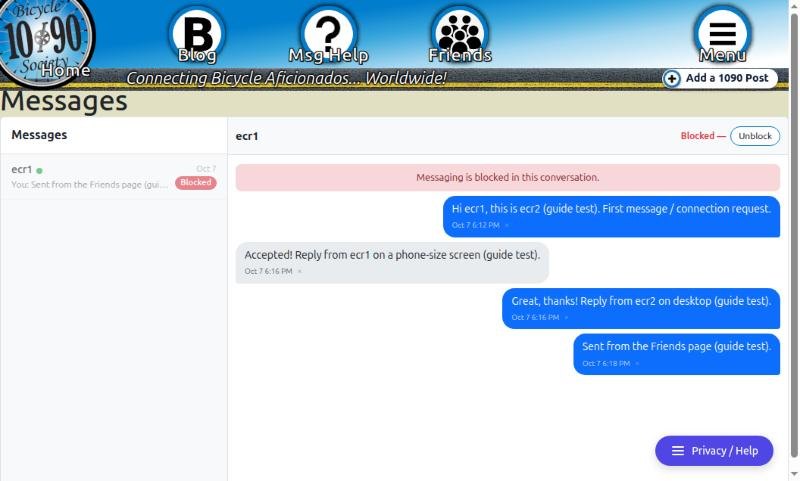
- The blocked member can no longer message you. If they try, they see “You cannot message this user.”
- The conversation shows a red Blocked badge and “Messaging is blocked in this conversation.”, and the message box disappears for both of you.
- Only the member who set the block can remove it, with Unblock on the Friends page’s Blocked list or in the conversation header.
- Unblocking does not add the member back to your Friends list.
There is currently no separate “remove friend” or “report” button. To stop contact with a friend, use Block. To report a problem, use Contact Us.
14. Help, Blog, and Contacting the Site
- Help explains what each icon means.
- Blog has articles and news, including Free Stickers! and the Walk Through Video.
- About 1090 Bicycle Society gives a short overview of the site.
- The purple Privacy / Help button at the bottom of every page opens Contact Us / Legal / Privacy, with a Help message form, Legal information, and Privacy Settings for cookie choices.
- Page footers link to Privacy, Cookies, Waiver & Release and the Contact Us form.
15. Using a Phone or Tablet
- Everything in this guide works by tapping. The icons along the top shrink to fit, and their labels are small, so tap the round icon itself.
- Easy mode is the quickest way to post from a phone. Add photos with Click to Upload Images.
- On the map, pinch to zoom and drag with one finger to move. Use the full-screen button for more room.
- In Messages, tap a name to open the chat and ← to go back to the list.
- The purple Privacy / Help button floats at the bottom right. If it covers something you need, such as the chat’s Send button, scroll slightly or press Enter to send.
16. Troubleshooting
| Problem | What to try |
|---|---|
| No activation email | Check spam or junk. Make sure you entered the right address. You cannot log in until the account is activated. |
| Activation link opened a login page instead of logging me in | This is normal when the link opens in a different browser or app from the one you registered in. Log in with your new username and password. |
| “Please login first” | Add Post, Profile, Friends and Messages are for members. Log in, then try again. |
| “Please verify your email address before posting” | Select the activation link in your registration email. |
| The map is blank or grey | The map needs your location to know where to start. Allow location access for this site in your browser settings and reload the page. Typing a place in the location box moves the map, but posts may not appear until location is allowed. |
| Search shows nothing | Select Clear, widen the dates, tick more categories, or zoom the map out. |
| No pin on the post form map | Allow location access for this site and reopen the form, then drag the pin to the right place. |
| My edit form looks short | Select Advanced at the top to show every field. |
| My second message disappeared | Only one message is allowed until the member accepts your request. |
| The envelope is pale and does nothing | Your connection request to that member is still pending. |
| “You cannot message this user.” | That member has blocked you. |
| I can’t find someone on my Friends list after unblocking | Unblocking does not restore the friendship automatically. |
| I was logged out on another device | Logging out anywhere ends your session everywhere. Log in again. |
| Anything else | Use the Contact Us form or the Privacy / Help button. |
Recommended First Steps
- Browse the Home feed and open the Map.
- Try Search with a category you like.
- Select Join Free, register, and select the activation link in your email.
- Fill in your Profile.
- Share your first post in Easy mode, then try Advanced to add a map pin.
- Comment on and rate a post you enjoyed.
- Send a friendly first message from a post’s envelope, and chat once you are connected.
1090 Bicycle Society works best when members take part: share rides and places, keep messages respectful, and help newcomers feel welcome. Every ride counts.